
A workspace for market depth and orders.
The order book shows displayed buy and sell liquidity for the chosen market. Place it beside your chart, order form and positions so the market and your instructions can be reviewed in the same workspace. Adjust module sizes to make price, quantity and account labels readable.
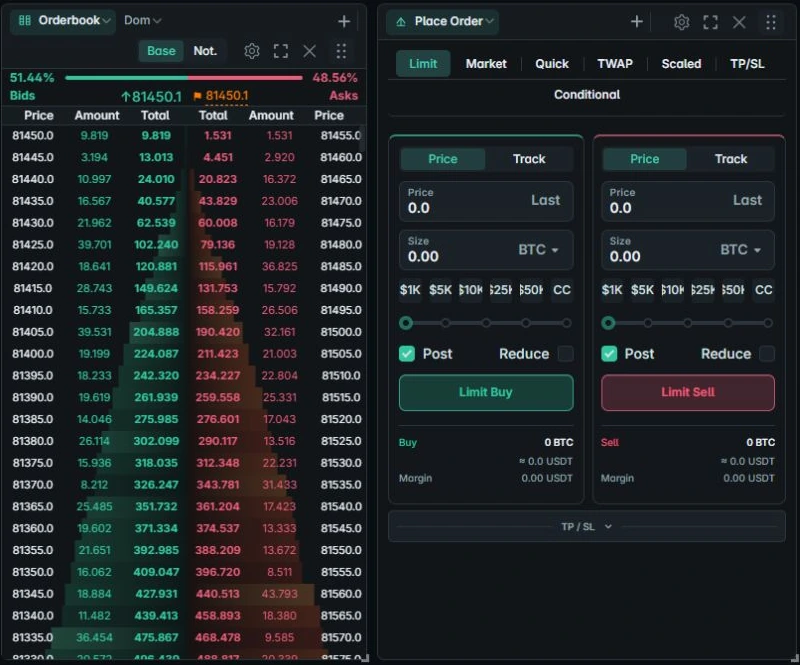
The order-book guide explains panel controls, while order types covers the available forms. Specific actions depend on the exchange adapter and account mode.
What the book tells you—and its limits.
Bids are displayed buy orders and asks are displayed sell orders. The difference between the best visible bid and ask is the spread. Rows further from the best price show additional displayed depth. Orders can change or disappear before another instruction reaches the matching engine.
Displayed depth is not a promise of a fill. The feed covers a particular instrument and may omit order types not exposed by the exchange API. Bybit, for example, documents that its public order-book API does not include RPI orders.
Check the instruction beside the data.
Keep the intended account and contract selected. In a split-chart layout, choose the pane used for orders and verify the resulting Place Order labels. Confirm the quantity unit and the specific order type instead of assuming that every instrument behaves alike.
A limit price can restrict acceptable execution price but does not guarantee execution. Bybit documents protection rules that can turn market instructions into IOC limit orders; available liquidity and price protection can prevent a fill. See the provider’s order documentation for current behavior.
Read the exchange result.
Inspect the order status, fills and positions after submitting an instruction. A click on a control is not confirmation of a fill. Connection failures and rejected instructions should be investigated using the exchange response and troubleshooting guide.