
What this example demonstrates.
This walkthrough connects the controls rather than proposing a trade. The screenshots show Schizo Terminal with a fictional account. The sizing demonstration uses a hypothetical 1,000 USDC quote balance and 0.01 BTC owned balance. Public chart prices are illustrative snapshots. No order was submitted to produce this article.
The workflow is fully funded Spot: buying with available quote currency or selling owned base assets. Schizo does not borrow funds or enable Spot margin trading.
Keep account setup on one screen.
- Open API Keys → Accounts → Add Account and choose Bybit.
- Match Mainnet or Demo to the credentials created at Bybit.
- Futures are included in the combined connection. Enable optional Spot if you want Spot markets and new Spot entries.
- Name the connection and enter its system-generated API key and secret. Grant the required read/trading access and SpotTrade permission; withdrawals are not required.
- Connect, select the account and verify private balances and existing order state.
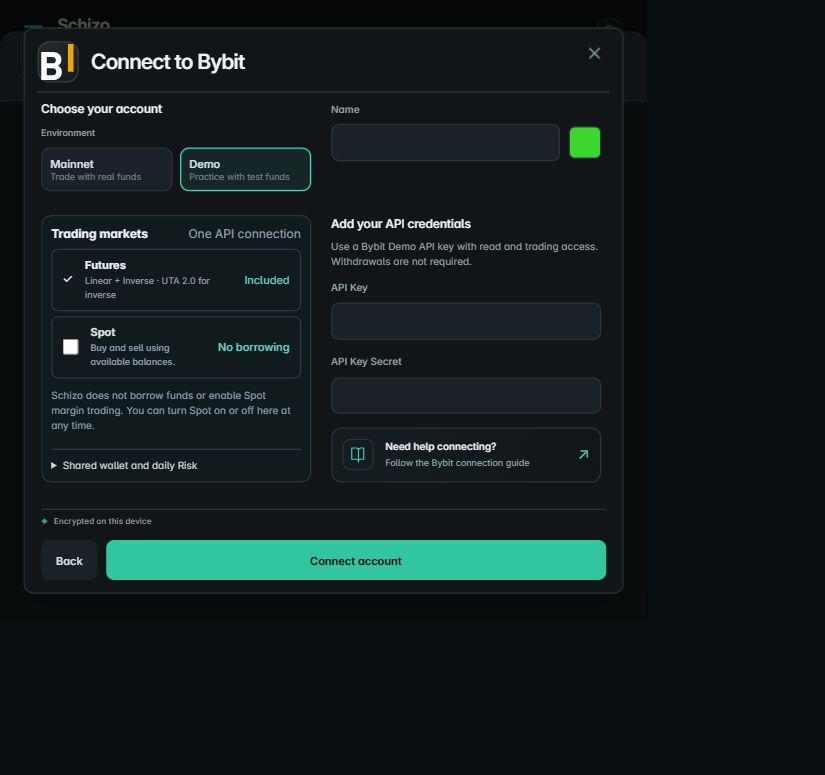
Changing environment clears credential fields so keys from one environment are not silently reused in another. Use the Bybit setup guide for exact account requirements. Inverse derivatives require the documented UTA 2.0 account support; Spot and futures are still different products.
Select the Spot instrument explicitly.
Choose the intended account, then the market labelled BTC/USDC · Spot. A similarly named futures contract is a separate instrument. Read the account, market category and size unit again in Place Order after switching a chart or account.
Turning Spot off in API Keys hides its normal market/ticker choices and blocks new entries. It does not sell assets or cancel orders. Existing holdings and orders remain available for management. The switch does not separate this account’s exchange wallet into a second wallet.
Choose which balance the allocation control uses.
In a compact order form, Size for Buy sizes against available quote currency; Size for Sell sizes against available owned BTC. Wider layouts can show separate buy and sell controls. Dragging, wheel input and keyboard arrows adjust allocation.
| Example control | What the displayed amount means |
|---|---|
| Size shown in USDC | Quote notional, not the number of BTC. |
| Buy allocation | Uses the confirmed quote balance with a reserve for applicable fees and market protection. |
| Sell allocation | Uses the confirmed available owned base asset. |
| 100% allocation | The rounded maximum for the selected funding side; it need not spend every last unit of quote currency. |
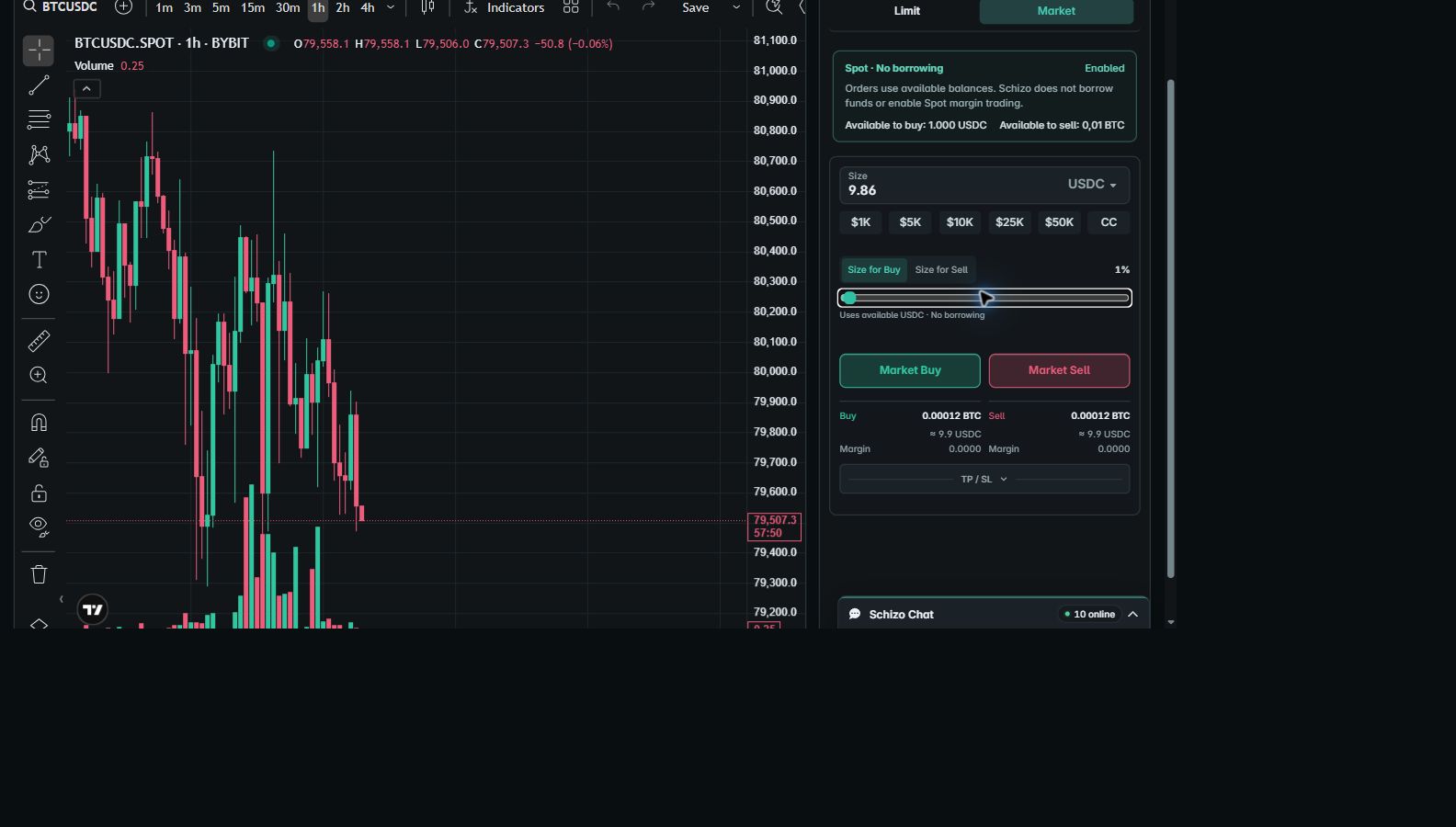
Minimum order value, quantity increments and venue limits still apply. Preset size buttons enter an amount; they do not establish that an account can fund it. If fresh availability is missing, the allocation control waits for a current snapshot rather than estimating borrowing capacity.
Read the exact instruction before using an action.
Choose Limit or Market. A chart limit action uses the selected chart price; a regular limit can still execute immediately when it crosses the opposite quote. Post adds a maker-only condition where supported. Read Limit versus Market and Post-only orders before assuming that a limit must rest.
Opening a chart menu does not submit an instruction. Selecting a trading action can submit one, depending on the configured workflow. Inspect side, size, explicit price and Post before choosing it. This walkthrough stops at inspecting those controls.
Use orders and fills to establish the result.
After an actual instruction, Open Orders shows what remains working and Fills shows confirmed executions. An order identifier, a chart line and a completed fill are different evidence. Cancelling an unfilled remainder does not undo an earlier partial execution.
A briefly displayed error can dismiss automatically. That only clears the banner; it does not cancel an order or resolve an unknown transport outcome. The order-status example explains what to check before retrying.
Keep shared-wallet Risk in view.
Where Bybit reports Spot assets in the same account wallet equity, their prices and fees can affect account-level Risk and available margin even while Spot is disabled in Schizo. Risk entry restrictions apply to Spot. Automatic closing covers derivatives only; Schizo does not automatically sell Spot holdings. Spot trades stay outside the derivatives Journal.
Review the connection’s Spot and shared-wallet explanation and its saved Risk reference. Device workspaces keep their own saved references; this release does not retrieve a shared midnight equity snapshot. An encrypted device backup is the supported way to preserve or move the local setup.